
Kimi
Moonshot AITools
4.4994.00 Reviews
- Version
- 3.0.9
- Installs
- 5.00M
- Age Rating
- Teen
Screenshots
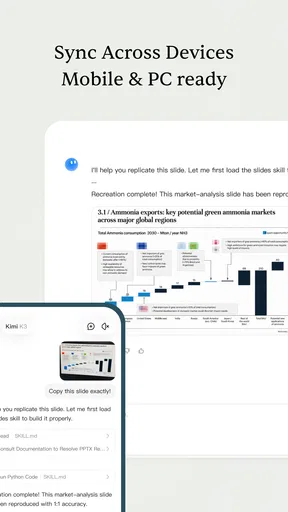
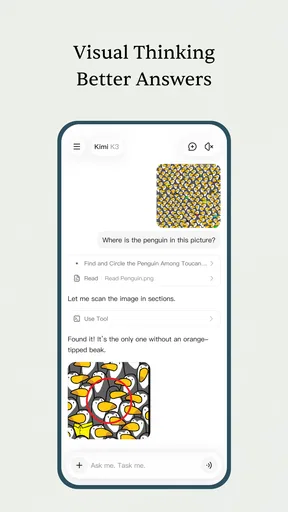
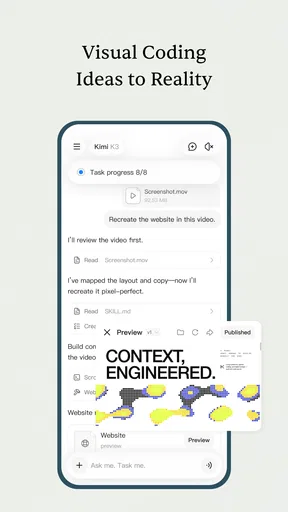
Our Review of Kimi
 Analysis by Appyee
I judge an AI assistant less by a polished first screen than by what happens when I bring it an untidy question, a half-formed plan, or information I would not want handled carelessly. That is the lens I use for Kimi, a free tools app from Moonshot AI. It has reached over a million installs and holds a 4.5 average from around sixteen thousand ratings, so plenty of people have tried it; those figures tell me it has an audience, not that it will suit every task or every comfort level.
The practical question is whether an assistant earns a place in a daily routine without encouraging me to trust it blindly. I like having a tool that can help me think through a task, but I also want to stay in charge of what I share and what I do with its response. That balance matters more to me than a list of impressive-sounding capabilities.
Trust begins with what I can actually see
The app is rated for teens, and its current release is version 2.6.1. I treat those details as context rather than a promise about how any particular conversation is handled. When an app is built around asking questions, the useful habit is to distinguish between ordinary prompts and sensitive material: I would use a made-up example or remove identifying details before discussing something personal.
I also avoid assuming that a simple setup tells me everything about privacy. In my first-use experience, the setup felt straightforward and I did not encounter a permissions gauntlet. That is convenient, but it is not the same as a full account of data practices. I would still pause to review any privacy information and account choices shown in the app before sharing private documents, workplace material, or details about someone else.
Keep control of the conversation
My safest way to use an AI assistant is to give it only the context needed for the immediate job. If I want help drafting a note, I can describe the audience and tone without pasting an entire private conversation. If I need to think through a choice, I can ask for options and trade-offs, then check important claims independently rather than treating a fluent answer as a final authority.
That approach is especially useful for health, money, legal, and work questions, where a confident-sounding mistake can have real consequences. I would use Kimi to organize questions for a professional or to make a rough checklist, not as a substitute for expert advice. I would also avoid entering passwords, payment details, confidential client information, or anything I would not want processed by an online service.
Where it fits among other tools
Compared with a basic notes app or a web search, an AI assistant can be more helpful when I need a first draft, a plain-language explanation, or a starting structure rather than a set of pages to browse. The trade-off is that a generated answer may omit context or need checking. For exact facts, current details, or a source I need to cite, I still prefer to verify the answer with dependable references instead of stopping at a chat response.
If I only want to save a list, set a reminder, or edit a document with predictable results, a dedicated phone tool is usually the better fit. Kimi makes more sense when the task benefits from back-and-forth thinking. Its store summary says “Kimi Claw is Live,” but I would not read that short phrase as a reason to expect any particular workflow; I would judge the app by the options I can see and use on my own device.
First Impressions
When I first opened Kimi, I was greeted with a sleek and modern interface. You know those apps that just look outdated? Yeah, this isn’t one of them. Everything is laid out in a way that just makes sense, which is a breath of fresh air. Right off the bat, it gives you a sense of ease and accessibility.
The setup process was pretty straightforward. I didn’t have to jump through hoops or deal with unnecessary permissions, which is always a plus in my book. It’s like the app understands that nobody has time for that kind of hassle.
Features That Stand Out
Now, let’s dive into what makes Kimi tick. The app has a bunch of features that cater to different needs. Whether you’re using it for productivity or just some casual fun, there’s something here for everyone.
- Customizable Widgets: I’m a sucker for customization, and Kimi lets you tweak things to your liking. The widgets are not only functional but also add a bit of flair to your home screen.
- Intuitive Navigation: Getting around the app is a breeze. Everything is where you’d expect it to be, and the learning curve is practically non-existent.
- Seamless Integration: It plays nicely with other apps on your phone, something that often gets overlooked but is super important.
These features are designed to enhance user experience, and I’ve got to say, they do a pretty good job. It feels like the developers actually thought about what people would want.
Performance and Usability
Performance-wise, Kimi runs like a well-oiled machine. I haven’t experienced any lag or crashes, which, let’s be honest, can be a dealbreaker for any app. It’s responsive and quick, making it a pleasure to use.
The usability factor is off the charts. Even if you’re not tech-savvy, you’ll find that everything is intuitive. From the moment you start using it, it feels familiar, like you’ve been using it for ages.
The Verdict
So, is Kimi worth the download? I’d say absolutely. It’s one of those apps that you didn’t know you needed until you try it. With its user-friendly design and robust features, it’s a solid choice for anyone looking to enhance their mobile experience.
Of course, no app is perfect, and there’s always room for improvement. But for now, Kimi is doing a lot of things right, and I’m excited to see where it goes from here. If you’re on the fence, give it a shot. You might just find it’s exactly what you’ve been looking for.
Remember, you can grab Kimi from your app store, and it’s free to download. So, go ahead, check it out, and let me know what you think. Happy exploring!
Everyday ways I would put it to work
A realistic use for me is turning a scattered set of errands into a workable afternoon. I might explain that I need to pick up a parcel, buy a few groceries, and leave time to call someone, then ask for a sensible order and a short checklist. I would keep the prompt general rather than adding my address or personal schedule. The useful part is getting a starting plan quickly; I would still make the final call based on opening hours, travel time, and what has changed that day.
For writing, I find an assistant most useful as a drafting partner, not an autopilot. I can ask for a polite version of a message, then add the exact details myself and read it aloud before sending. A good practical tip is to specify what should stay unchanged, such as the main request or a deadline, and ask for a tone rather than asking it to invent the whole situation. That reduces the chance of a polished draft quietly changing the meaning.
For learning, I would use it to explain a difficult idea in simpler language, then ask for a small example or a comparison. If the explanation is still fuzzy, I can point to the specific part that confused me instead of restarting with a broad prompt. This kind of follow-up is where a conversational tool can feel more useful than a search results page, though I would verify factual claims when accuracy matters.
Small habits that make the results more useful
I get better results when I separate the task from the background. Rather than pasting a long block of notes and hoping the assistant finds the point, I would first say what I need back: a summary, a list of decisions, or a draft with a particular audience in mind. Then I would provide only the relevant material. This saves attention and makes it easier to spot when the answer has misunderstood the request.
For a multi-step task, I would ask for one useful output at a time. For example, I might first ask it to group meeting notes by topic, then ask for open questions, and only after checking that summary request a follow-up email draft. The trade-off is a few extra turns, but the checkpoints make errors easier to catch before they carry into the next step.
I would also treat a response as a proposal that I can edit. If a plan sounds too ambitious or a draft sounds unlike me, I would say which part to change and what constraint matters. That is more productive than accepting the first answer or repeatedly rephrasing the entire prompt. An assistant can help organize my thinking, but I remain responsible for judging whether the result fits the real situation.
Cost, access, and who should be cautious
The app is free to download, while optional in-app purchases are listed from $18.99 to $372.00 per item. I would check the purchase screen carefully before committing, especially if I only want occasional help; a free install does not mean every possible use is free. If I am unsure whether I will use it regularly, I would begin with ordinary tasks and decide whether any paid option solves a clear need rather than buying on impulse.
It is available for devices running Android 8.0 or later. That gives Android users a clear compatibility threshold to check before installing. Kimi is not the right choice for someone who wants every answer to be sourced automatically, a deterministic calculator, or a private offline notebook. In those cases, a reference tool, a calculator, or local notes are more predictable and may be a better match.
I would also be cautious if I were setting it up for a younger user. The teen content rating is useful context, but I would not treat an age label as a replacement for a family conversation about what to share with an AI service. For schoolwork, it can help explain or outline, but the learner should check the material and do their own thinking rather than submit generated text as if it were their work.
What I would check before relying on it
Before making Kimi part of a routine, I would explore the visible account and privacy choices and read the explanations attached to them. If I wanted to stop using it, I would look for the available account controls and understand what each option does before taking action. I would not assume that uninstalling an app and changing account settings are identical steps; those choices can serve different purposes, so it is worth checking them directly.
I would also test it with low-stakes prompts first. Ask for a simple explanation, a draft you can compare with your own, or a checklist for a routine task. Notice whether the response is easy to correct, whether the app makes the next step clear, and whether its style suits you. That small trial tells me more than a string of star ratings because it shows how well the tool fits my own habits.
People often wonder whether they need to pay to try an app like this, whether it suits a quick daily task, and whether they can trust every answer. My practical answer is: the download is free, ordinary planning and drafting are reasonable trial uses, and important outputs still deserve a human check. The purchase range is broad enough that I would inspect the specific item and terms before buying, rather than treating all paid options as interchangeable.
A careful recommendation
Moonshot AI’s Kimi has an approachable feel, and I can see why a conversational tool like it would appeal to people who want help getting from a vague question to a usable first draft. Its strongest case is not replacing every app on a phone; it is offering a flexible place to brainstorm, clarify, and organize. I would recommend giving it a low-risk trial if that kind of help sounds useful, while keeping sensitive details out and checking anything consequential.
My recommendation is therefore positive, but measured. The free download makes it easy to explore, and the interface I encountered did not make getting started feel like work. Still, an assistant earns trust through repeated, careful use, not a friendly screen or a high average rating. If you want a conversational helper and are comfortable reviewing its answers, it is worth trying; if you need guaranteed accuracy, strict privacy assurances, or a tool that works like a fixed utility, choose something more specialized.
Verdict
Strengths of Kimi
- User-friendly interface, easy navigation.
- Extensive customization options available.
- Seamless integration with other apps.
- Regular updates with new features.
- Efficient customer support service.
Limitations of Kimi
- Occasional crashes on older devices.
- Requires internet for most features.
- Limited offline functionality.
- Ads can be intrusive at times.
- Some features locked behind paywall.
Similar Picks in This Category
View All
Google LLC4.0

Gboard - the Google Keyboard
Google LLC4.5

Google Play services
Google LLC4.3

Google Play Store
Google LLC4.9

Files by Google
Google LLC4.5

SHAREit: Transfer, Share Files
Smart Media4U Technology Pte.Ltd.4.3
Frequently Asked Questions
What is Kimi, and what does it offer?
Kimi is a versatile app designed to enhance productivity and communication. It offers features such as task management, real-time collaboration, and a seamless messaging platform. Whether you're managing projects or staying in touch with team members, Kimi provides an intuitive interface and customizable options to suit various professional and personal needs.
Is Kimi available for both Android and iOS devices?
Yes, Kimi is available for download on both Android and iOS platforms. You can easily find it on the Google Play Store for Android devices and the Apple App Store for iOS devices. This ensures that users can access Kimi's features regardless of their device preference.
Does Kimi require an internet connection to function?
Kimi requires an internet connection for most of its features, such as real-time collaboration and messaging. However, some functionalities, like task management, may be available in offline mode, allowing you to continue working without interruption and sync your data once you reconnect to the internet.
Is there a cost associated with using Kimi, or is it free?
Kimi is available as a free download, offering a variety of features at no cost. However, it also provides premium subscription options for users seeking additional functionalities and enhanced capabilities. These premium plans typically include advanced collaboration tools and increased storage capacity.
How secure is my data when using Kimi?
Kimi prioritizes user data security by employing robust encryption protocols and regularly updating its security measures. This ensures that your personal and professional information remains safe from unauthorized access. Additionally, Kimi's privacy policy is transparent, detailing how your data is managed and protected.
